Flexible gallery
Switch between two and six columns to see more images or give each one room to breathe.
 looma.
Bring local photo folders into one clear view. Compare similar pictures together, inspect originals, and choose what deserves to stay.
Explore in Microsoft Store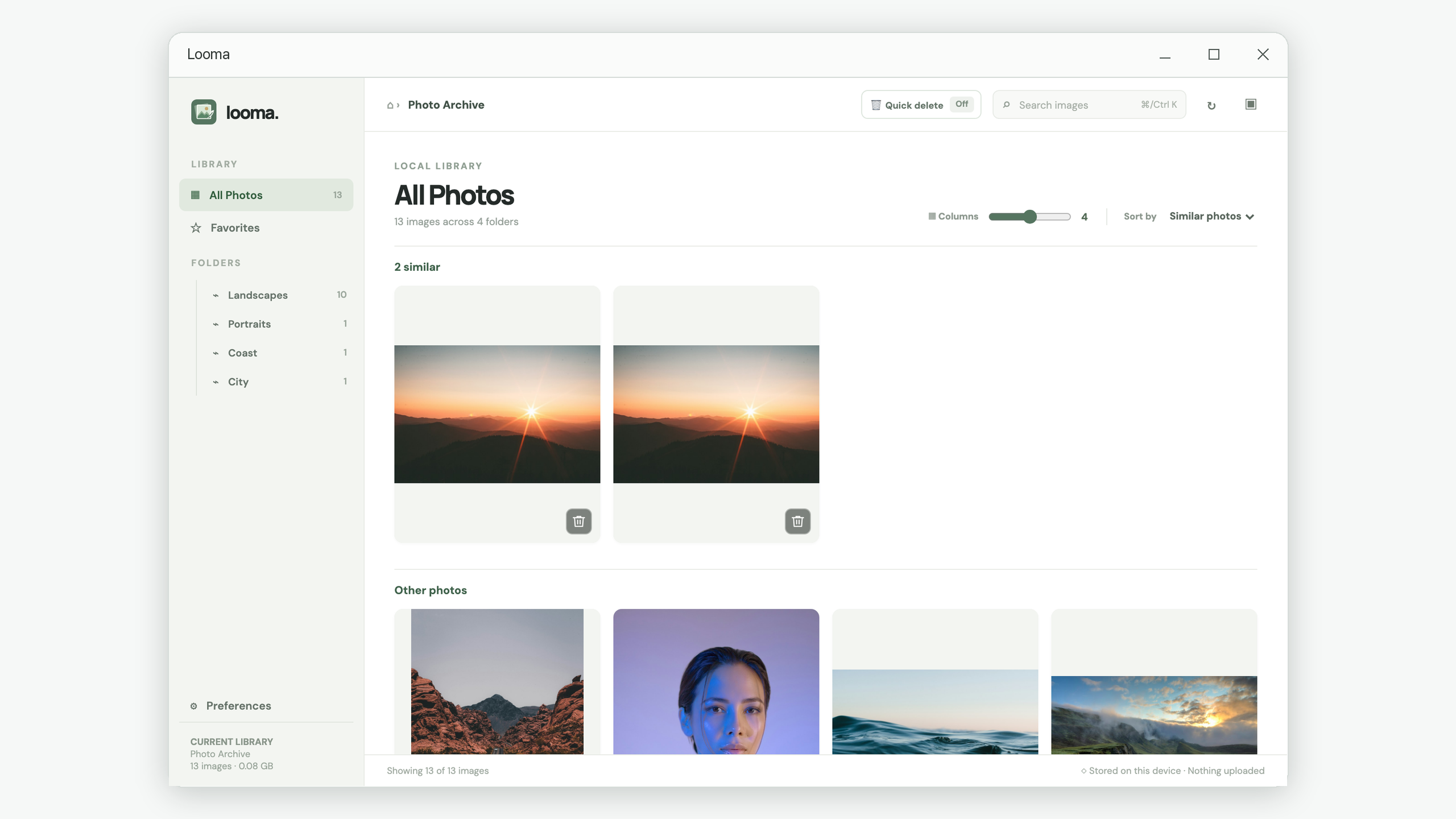
Browse the gallery, check the original, and review the file before moving it to Trash. Every screenshot below shows the English app interface.
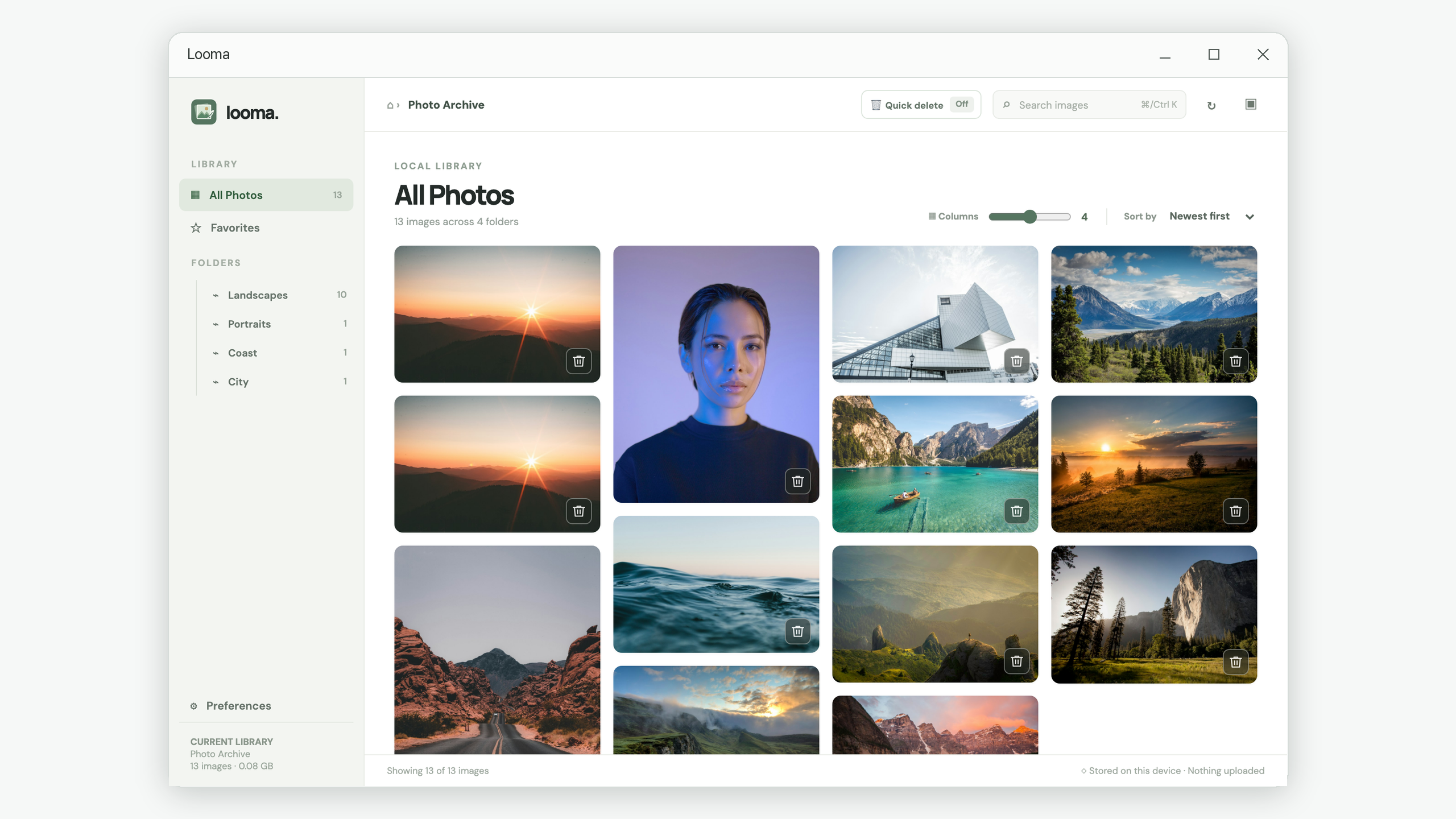
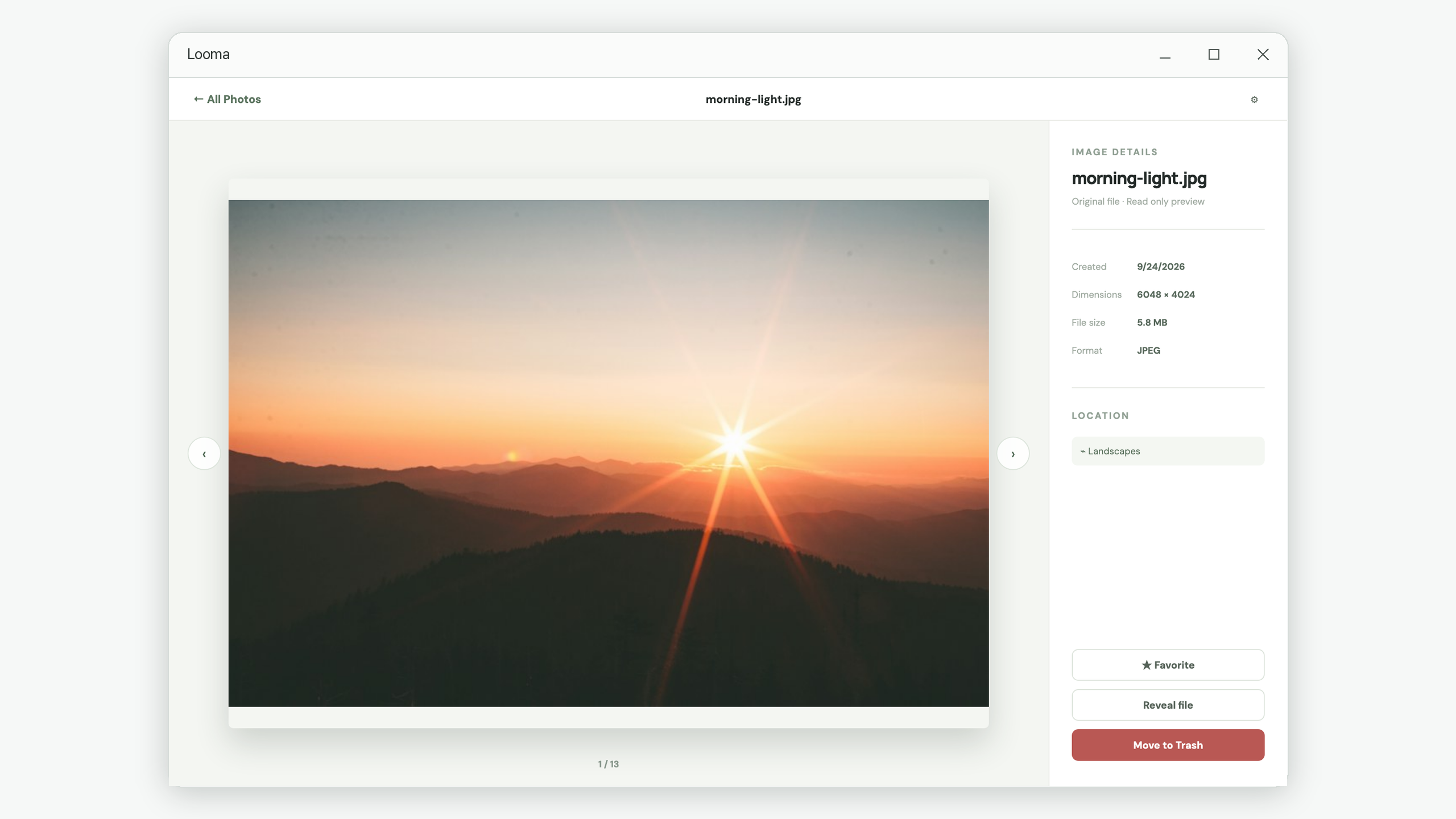
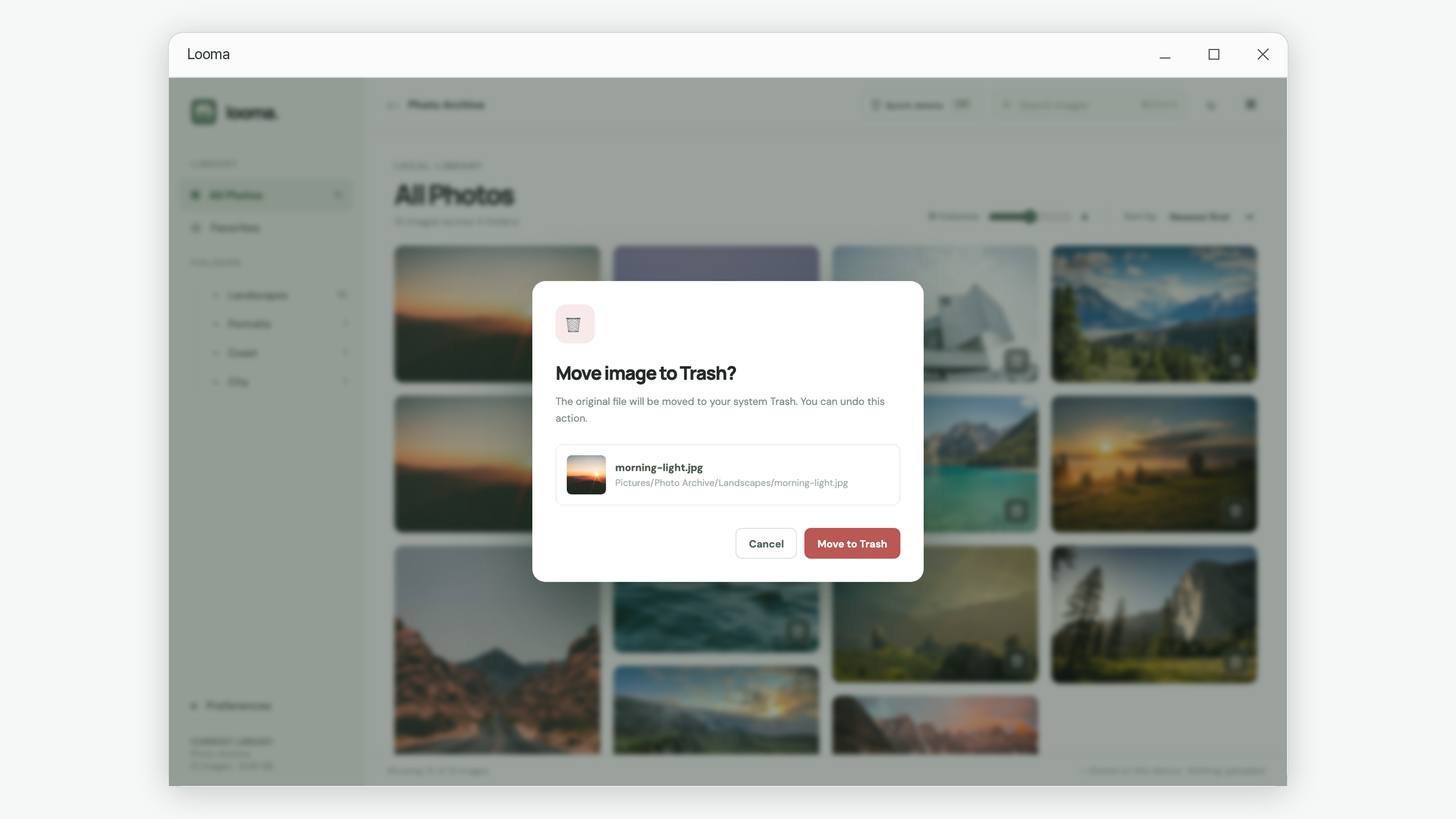
Click any screenshot to view it full size.
Simple controls help you move through a large collection without losing your place.
Switch between two and six columns to see more images or give each one room to breathe.
Search names and folders, sort by date or name, and narrow your view to a folder.
Similar photos are grouped together by default, so related pictures are easy to compare without hunting through the gallery.
Open a photo to check its date, size, dimensions, format, and location.
Keep a short list of images you want to revisit as you work through a collection.
Move originals to the system Trash with confirmation by default and an immediate Undo option.
Pick the local image folder you want to review. Looma can include its nested folders.
Adjust the layout, search, preview, and favorite as you move through the gallery.
Send unwanted originals to the system Trash and undo a move when needed.
Find an answer to the problem in front of you, then work through a small, manageable part of your collection.
Explore all guidesFind duplicate-looking photos, compare image details, and choose which version to keep using Looma’s grouped photo review workflow.
Read the guideA step-by-step photo cleanup tutorial: review a folder, mark favorites, check originals, and use confirmation and Undo before moving on.
Read the guideBrowse nested photo folders in one local gallery, search file names and folder paths, and troubleshoot images missing from your library.
Read the guideUnderstand the Windows Recycle Bin, Looma’s temporary Undo copies, and local previews so you can recover a mistaken deletion and manage storage.
Read the guideNo. Looma reopens the saved library without scanning. Choosing a folder starts a scan; use Rescan and confirm when you want to update the current library.
No. Looma reads files in the folder you choose and keeps its index and previews on your device.
No account is required, and Looma has no cloud sync.
JPG, JPEG, PNG, WebP, HEIC, and HEIF images are supported.
Yes, when Include subfolders is enabled in Preferences. Confirm a Rescan to apply a change to the current library.
The original moves to your system Trash. Looma keeps a temporary local copy so you can use Undo.
Yes. Use the Columns control to choose between two and six columns.
Search by file name or folder path, then sort or filter the results.
Start with the photo cleanup guides, or contact support@iamdev.me with a question or feedback.
A focused place to review what you have and clear what you no longer need.
View Looma in Microsoft Store ↗