 looma.
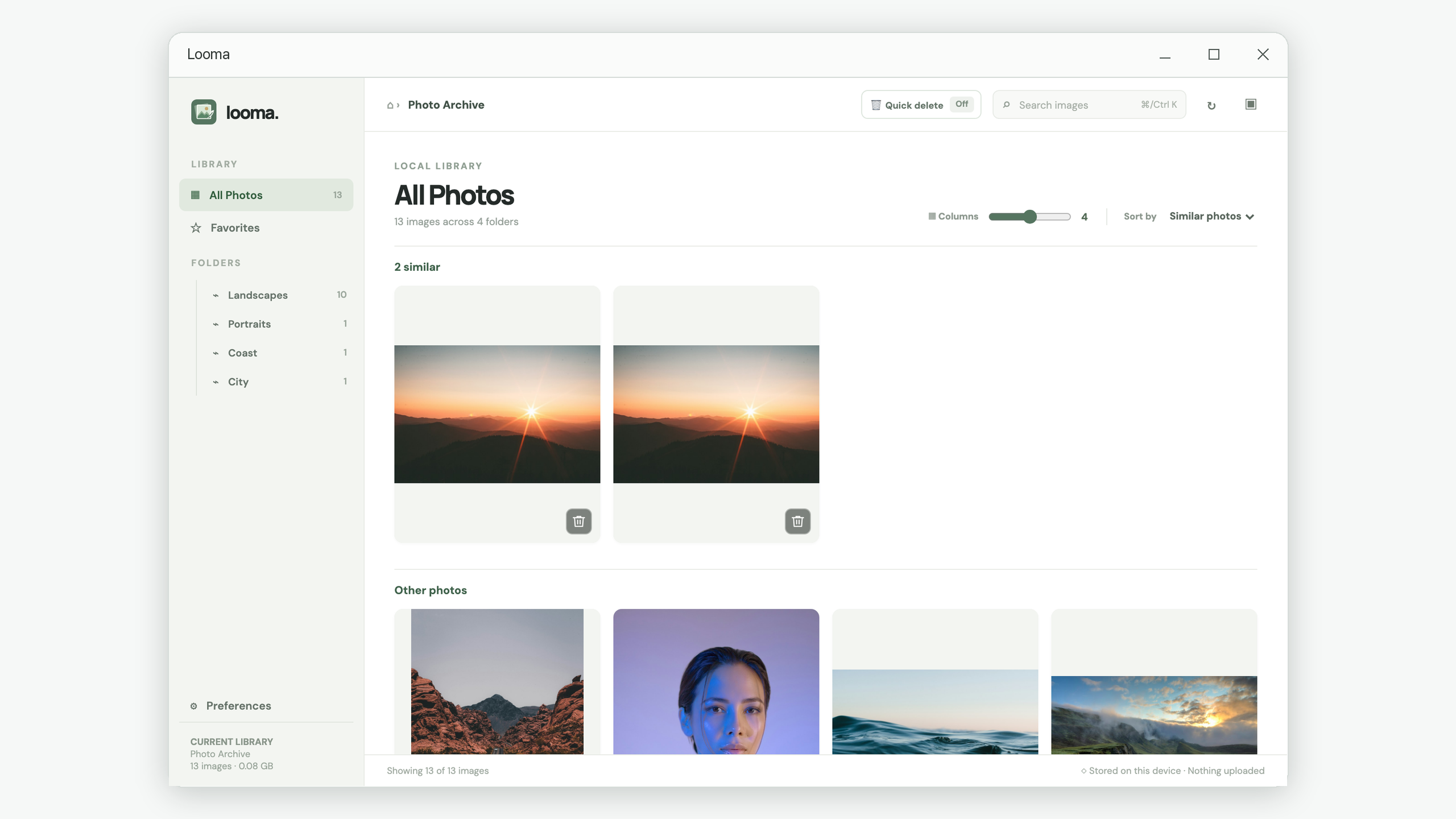
Choose a local folder in Looma and use Similar photos sorting. Each matching group appears in its own section, with the pictures next to one another. Preview the candidates, check their dimensions and location, then decide which originals to keep.
What counts as a similar photo?
A copied picture may have a different name, a different file size, or a different format. Looking only for matching file names will miss these cases. Visual similarity helps you find pictures that look alike even when their names differ.
In Looma, a group is a review suggestion. It does not certify that every file is an exact duplicate, and it does not decide which version is best. Light edits and repeated copies can group together; substantial crops or very different exposures may remain separate. A group can also contain images linked through another close-looking image.
1. Start with a folder you can review in one sitting
Choose a trip archive, a phone import, or one project folder. Open Preferences and leave Include subfolders on if related copies live in nested folders. Then select Choose a folder and let Looma scan the supported images.
The app keeps your originals in their existing locations. You can select View photos while scanning continues, although groups may change as more pictures are found. For a settled comparison, wait until the scan finishes.
2. Read the group, not just the count
Similar photos is the default sorting mode. If you have changed it, choose it again in Sort by. Matching pictures are shown in separate groups; unrelated pictures appear under Other photos. The group count includes the picture you are currently looking at: a group of three contains three pictures in total.
Reduce Columns when you need larger thumbnails. Increase it when you want more candidates in view. A group with more members than the selected column count wraps onto the next row within the same section. Use Load more to see further results; a matching group is loaded whole rather than cut across pages.
3. Compare the originals before choosing a keeper
Open the first candidate. Check Dimensions, File size, Format, and Location in the details panel. The preview helps you compare framing and obvious changes; the details help explain why two similar-looking files may still serve different purposes.
Return to the gallery and open the next candidate from that group. Your gallery position is retained. The preview arrows move through the loaded gallery sequence, so return to the group if you need to check exactly which candidates belong together. Use Reveal file to locate a candidate in File Explorer.
A 6048 × 4024 JPEG and a 1600 × 1067 web export might show the same scene. Keep the larger original if you need it for later work. You may also want the smaller export if it is the version used in a project. Bigger dimensions alone do not prove a picture is the better photograph.
4. Mark the keeper and remove only the copies you have checked
Use Favorite as a reminder of the version you prefer. Leave Quick delete off while learning the workflow. Select the unwanted candidate’s trash button, check the file name in the confirmation dialog, and choose Move to Trash. The action affects that original file, not the entire similarity group.
After removing a candidate, pause long enough to check the result. If it was the wrong file, use the immediate Undo action. Favoriting an image is a review marker; it does not prevent you from deleting that image.
Common questions
Why are two pictures I consider duplicates not grouped?
Strong crops, different framing, or large visual changes can stop a match. Search for part of the file name or narrow the gallery to its folder, then compare the files manually.
Does searching or filtering change the groups?
Yes. Similarity grouping works on the current results. A folder filter, search, or Favorites view can exclude a related copy. Use All Photos and clear the search when you want to review the whole current library.
Will Looma delete duplicates automatically?
No. You choose each image to move to Trash. The grouping gives you a useful comparison order without making the cleanup decision for you.
For the next step, follow the photo folder cleanup tutorial .
Put the workflow into practice.
Review a local folder, compare the pictures, and decide what deserves to stay.
View Looma in Microsoft Store