 looma.
Choose one folder, look for obvious keepers, inspect uncertain files, and remove checked images one at a time. Keep deletion confirmation enabled until you are comfortable with the selected folder.
1. Choose a manageable scope
Start with one event, one import, or one completed project instead of your entire photo collection. A clear boundary makes it easier to remember why a picture exists. For example, review the folder containing a recent weekend trip before moving to years of phone exports.
In Looma, choose the folder you want to review. Include subfolders controls whether nested folders join that library. Choosing a different folder replaces the current photo index; it does not remove the original files in the previous folder.
If these are the only copies of important pictures, keep a separate backup before deleting originals. Favorites and Undo help with reviewing and correcting a recent action, but they do not replace a lasting backup.
2. Make a first pass for keepers
Start with Similar photos to compare related versions, or choose Newest first to review a recent import. Adjust Columns so the subjects are easy to see. Fewer columns are useful for expressions and small differences; more columns are useful for quickly spotting unrelated screenshots or obvious rejects.
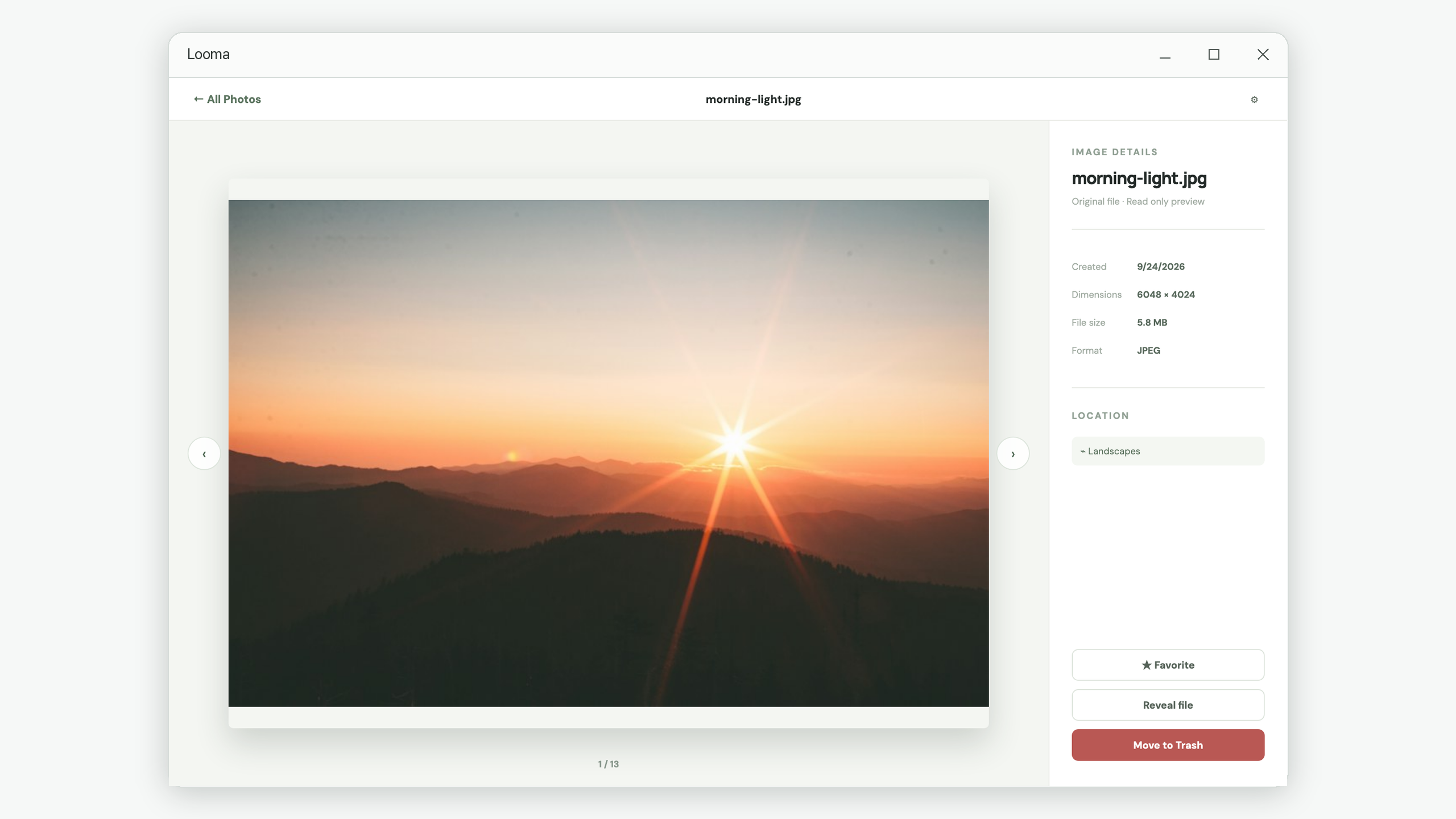
Open pictures you want to revisit and select Favorite. This creates a shortlist in Favorites without moving or renaming the originals. A favorite can still be deleted, so always check the selected file before a cleanup action.
3. Inspect the uncertain images
When two candidates look alike, open each one and compare the details. Check the image dimensions, its format, and its folder location. A small export may be useful for sharing, while its larger original may be useful for editing. An edited crop may be intentional even when it looks similar to its source.
Use Reveal file when the location changes your decision. It opens the file’s location in your operating system so you can see whether it belongs to an active project. Return to the gallery when finished; Looma keeps your browsing position.
4. Keep confirmation on for your first cleanup pass
Check that Quick delete is off in the top toolbar. You can also enable Confirm before moving to Trash in Preferences. Both controls change the same behavior: whether Looma asks before moving the selected original.
- Select the trash button on the unwanted image, or choose Move to Trash in its preview.
- Read the selected file name and path in the dialog.
- Confirm only when it is the file you intended to remove.
- Check the gallery result before moving to the next image.
This is an individual-file workflow. There is no need to commit an entire similarity group to one decision. If a group contains an original, a useful edit, and an unnecessary copy, keep the first two and remove only the third.
5. Use Undo immediately when a move was wrong
After a deletion, Looma shows a short-lived notification with Undo. Use it as soon as you notice a mistake. The notification is for the most recent action; the app does not provide a browsable history of every deletion.
Looma also keeps a temporary local copy for recovery, and the operating system receives the original in its Trash or Recycle Bin. These are temporary recovery paths, not permanent storage. The deletion and storage guide explains their different roles.
Turn it on only after you have deliberately chosen a set of obvious rejects and checked the current folder. It skips the confirmation dialog but still moves each selected original to Trash. Switch it off again when you return to uncertain comparisons.
6. Finish with a small review checklist
- Revisit Favorites and confirm the pictures you wanted to keep remain.
- Check any active project folders before removing edited exports.
- Leave uncertain images in place for a later session.
- Review the system Recycle Bin before making a later permanent deletion.
You can close Looma after a session and reopen its saved index without starting another scan. If files were changed outside the app, use Rescan and confirm the action to update the library.
Common questions
Does viewing a picture change the original?
No. The preview is read only. Favoriting changes Looma’s local index, while Move to Trash is the action that changes where the original file is stored.
Do I have to finish a whole folder at once?
No. Keep the scope small, use Favorites for candidates you want to revisit, and return later. Within a session, going from a preview back to the gallery retains your position.
Why did the gallery not notice a file I changed in another app?
Looma does not continuously rescan. Select Rescan and confirm it after external changes.
Put the workflow into practice.
Review a local folder, compare the pictures, and decide what deserves to stay.
View Looma in Microsoft Store