 looma.
Choose the parent folder containing the pictures, enable Include subfolders, and scan it in Looma. Use the sidebar to narrow by folder and the search field to match file names or folder paths.
1. Choose the right parent folder
Imagine a collection arranged as
Photo Archive / Trips / Coast
,
Photo Archive / Family
, and
Photo Archive / Projects
. Opening only Coast gives you that branch. Choosing Photo Archive
lets you review all of those branches together when subfolders are
included.
Pick the smallest parent folder that contains the pictures you need. This gives the gallery useful context without bringing in unrelated directories. You do not need to move files into a new combined folder or flatten the structure to browse them together.
2. Enable subfolders and scan once
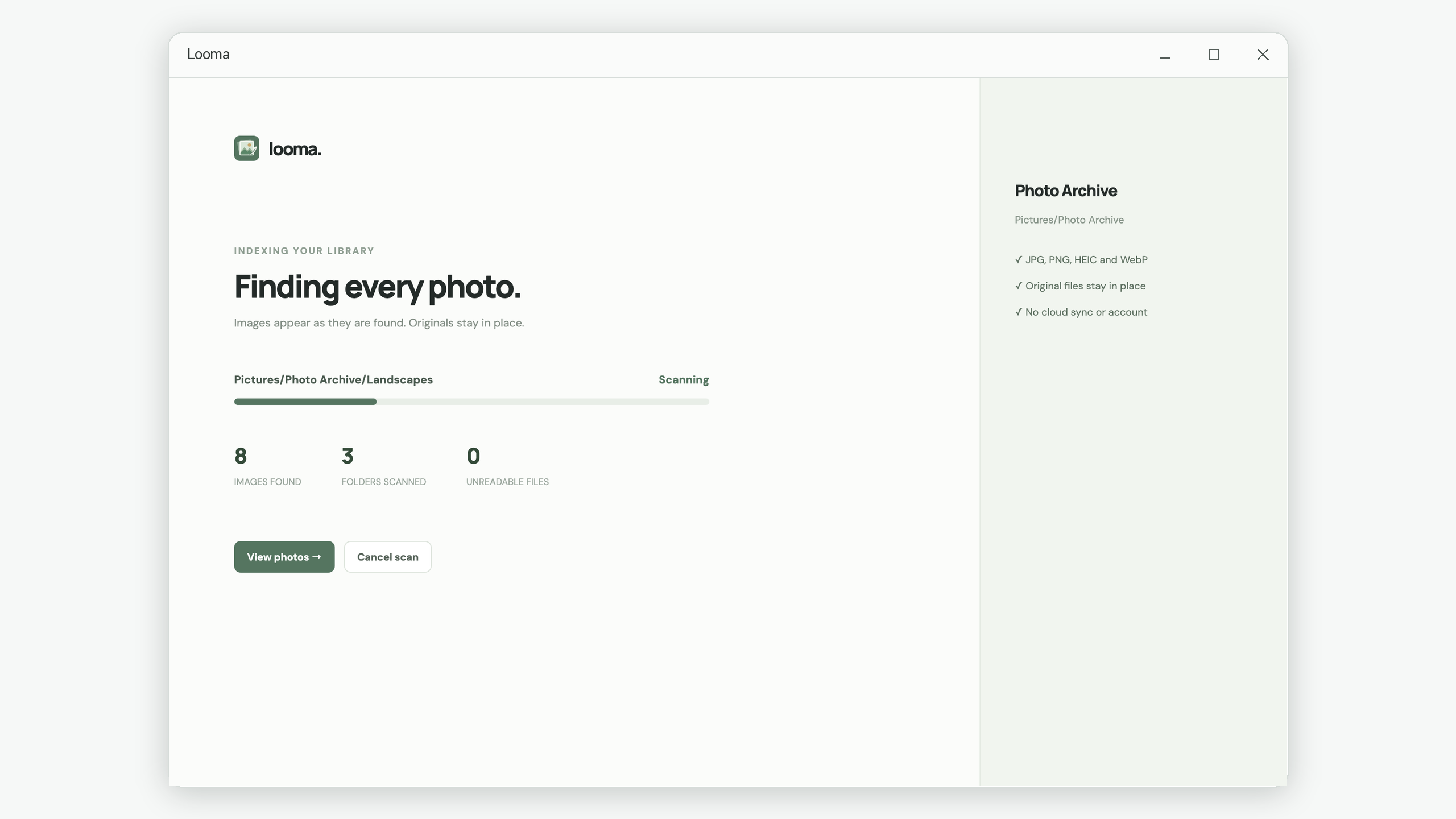
In Preferences, enable Include subfolders, then choose your parent folder. During scanning, Looma displays how many images and folders it has found, along with an unreadable-file count. Choose View photos if you want to begin browsing before the scan ends.
If you enabled subfolders after a folder was already scanned, use Rescan and confirm the action. The saved library does not update automatically just because that preference changed.
3. Use the folder sidebar to narrow the view
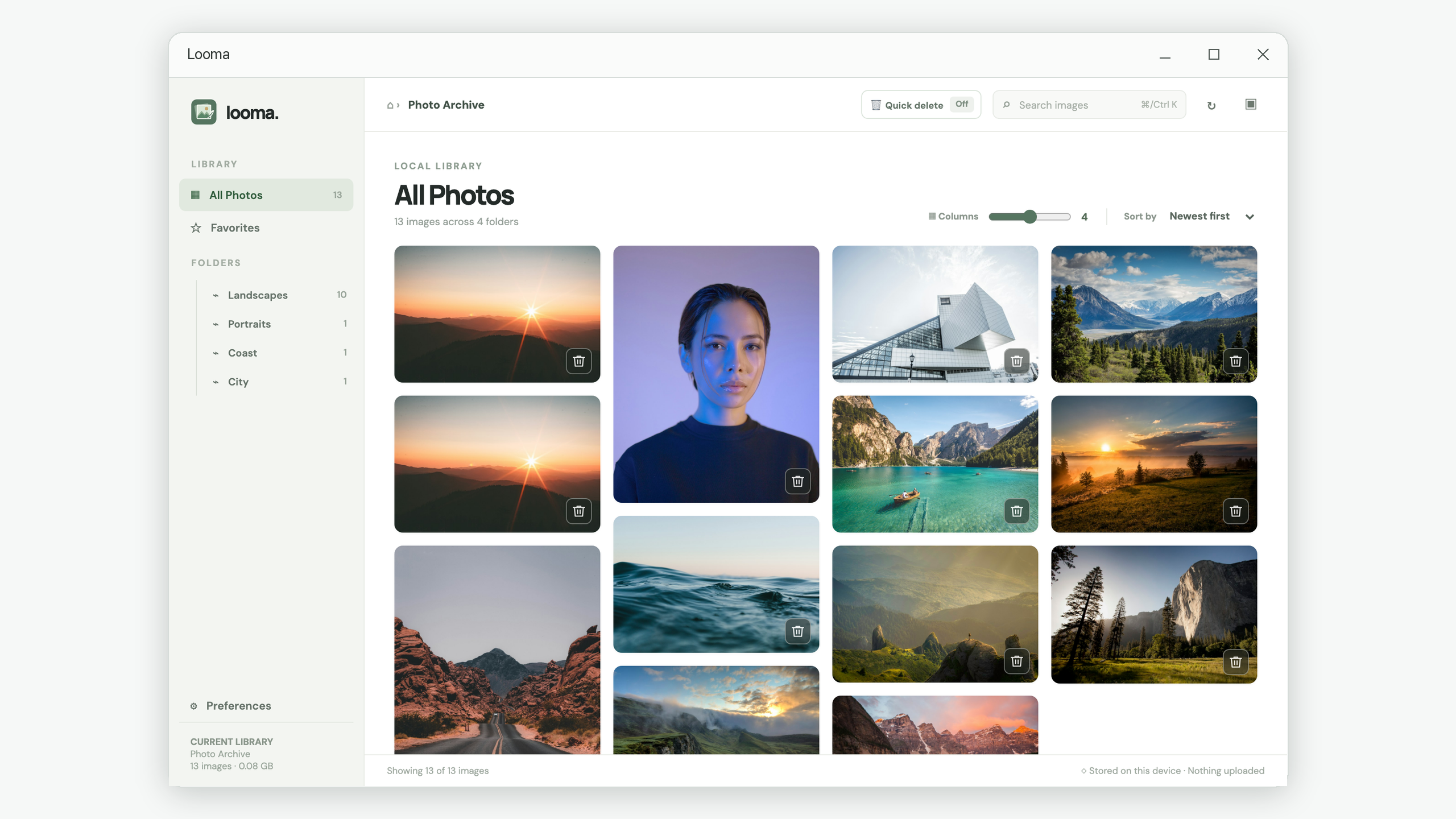
All Photos includes the images in the current library. Select a folder in the sidebar to see only images directly indexed under that folder. The entry shows its image count. Scroll the folder list when the library contains more entries than fit on screen.
A sidebar folder selection is an exact-folder view. It does not automatically include every descendant of that sidebar entry. To see all indexed branches together, select All Photos. This distinction is useful when a project directory contains both source files and nested exports.
4. Search file names and folder paths
Use
Search images
to match text in a file name or its indexed folder path. For
example, search
coast
for a folder name,
sunset
for named exports, or
IMG_204
for part of a camera file name. The search does not analyze what
appears inside a picture.
Search applies within the current folder or Favorites filter. If a result seems missing, select All Photos and clear the search before trying again. On Windows, Ctrl + K focuses the search field.
Use File name sorting for numbered exports, Newest first for recent file modifications, and Similar photos when visual copies matter more than names. The date sort uses file modification time, so it is not necessarily the order in which a camera took the pictures.
5. Troubleshoot pictures that do not appear
| What you notice | What to check |
|---|---|
| An entire nested branch is absent | Enable Include subfolders and run a confirmed Rescan. |
| A known file is absent from results | Clear search, select All Photos, and check whether Favorites is filtering the view. |
| A RAW, GIF, or TIFF file is missing | Looma currently indexes JPG, JPEG, PNG, WebP, HEIC, and HEIF. Other formats do not appear. |
| The unreadable count increases | Check that the image opens normally and that your account can read the file. |
| A new file added elsewhere is absent | Run Rescan. Reopening Looma shows its saved index and does not start a scan. |
The scanner also skips directories whose names begin with a period. If you intentionally keep pictures in such a folder, choose a suitable visible photo directory for this workflow.
6. Switch libraries deliberately
Choosing another folder replaces the previous photo index and similarity results. Your old originals stay where they were, while unused previews and thumbnails are cleaned. The new view starts with its own list and cleared search and folder filters.
Rescanning the same folder is different: it refreshes the existing library and keeps favorites on files that remain indexed. This makes a manual rescan useful after an import without turning every return to the app into another scanning session.
Common questions
Can I keep several separate libraries open at once?
Looma works with one current root folder. To review related collections together, choose their shared parent and include subfolders.
Can Looma search the contents of a photo?
The text search matches file names and folder paths. Use similarity groups for visual comparisons, or preview an image to inspect it yourself.
Once you find the right collection, use the similar photo comparison tutorial to review repeated versions.
Put the workflow into practice.
Review a local folder, compare the pictures, and decide what deserves to stay.
View Looma in Microsoft Store